AI UGC videos are made by feeding a product into an ai ugc video generator that generates the script, avatar, and voice for you - no camera, actors, or filming required. The process replaces the traditional UGC pipeline (brief a creator, film, edit, wait) with a structured flow: product input, format selection, AI-generated script, AI model and voice selection, then video generation.
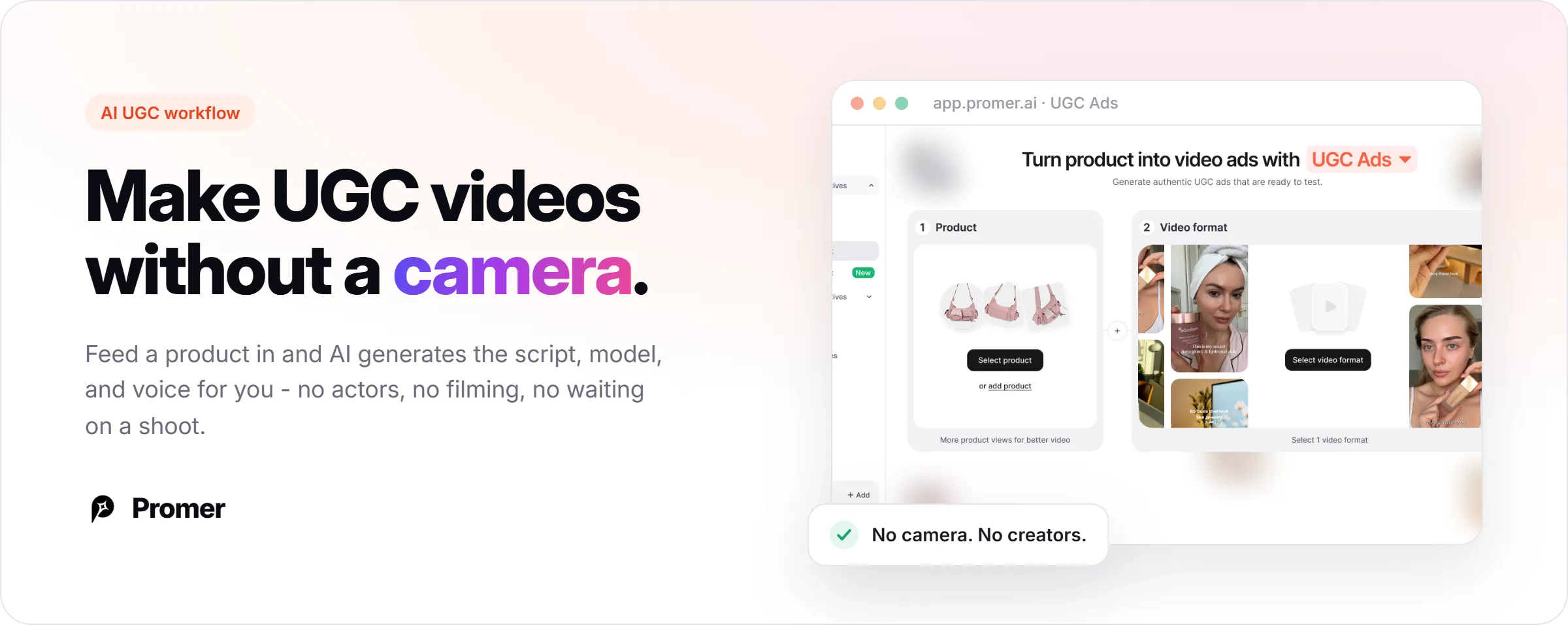
This matters because traditional UGC ads are slow and expensive to scale. A single influencer video can cost thousands of dollars and take weeks to deliver, and testing multiple hooks or angles means repeating that cost each time. AI UGC videos let ecommerce teams test more creative variations in the time it used to take to book one shoot.
This article walks through the actual steps for making an AI UGC video, from product input to a finished, downloadable ad.
Key Takeaways
- AI UGC videos are generated from a product image or URL, not filmed with a real creator
- The core inputs are product photos, a video format, an AI model (avatar), and a voice
- AI can suggest the hook, message, and call to action automatically, or you can write your own
- The output is a scene-by-scene script paired with an AI-generated voiceover, then rendered into video
- Review every AI UGC video before publishing - generated creatives can contain mistakes
What You Need Before Starting?
You need three things before generating an AI UGC video: clear product images, a sense of which video format fits your product, and access to an AI UGC video tool.
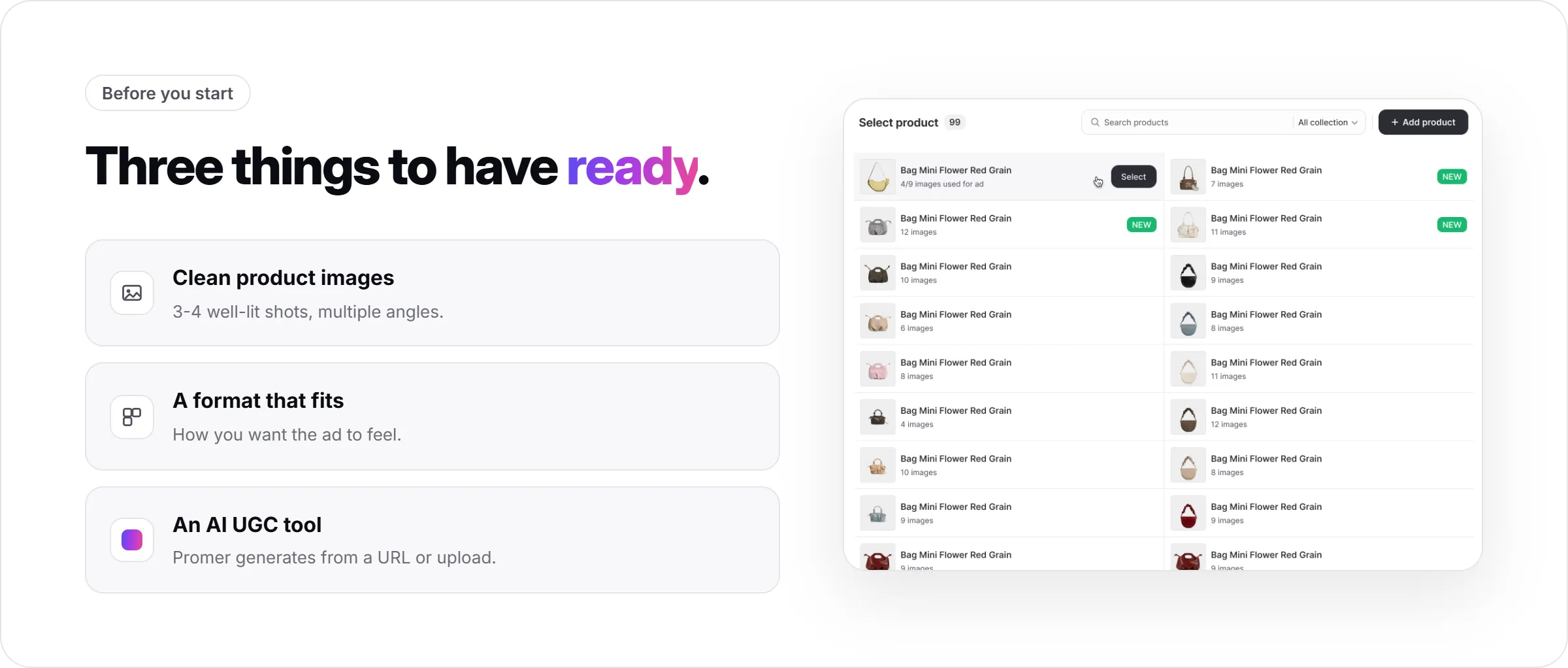
Product images matter more than most people expect. Clean, well-lit photos with the full product in frame produce better AI output than a single blurry listing photo. Multiple angles - front, side, back, detail shots - give the AI more to work with when it builds scenes around the product.
UGC Ads generates the video directly from a product you've already added, either by pasting a product URL or uploading images directly. If you're testing this for the first time, start with a product that already has 3-4 clean images.
Step 1: Add Your Product and Select Images
- Add the product by URL or image upload
- Select which product angles the AI should use (up to several images)
- Follow suggested angles (side, top, 3/4) for better accuracy
- Avoid images with people, avatars, or cluttered backgrounds
Add the product by pasting a URL or uploading images, then choose which product images the AI should use. Most tools let you pick multiple angles rather than relying on a single photo.
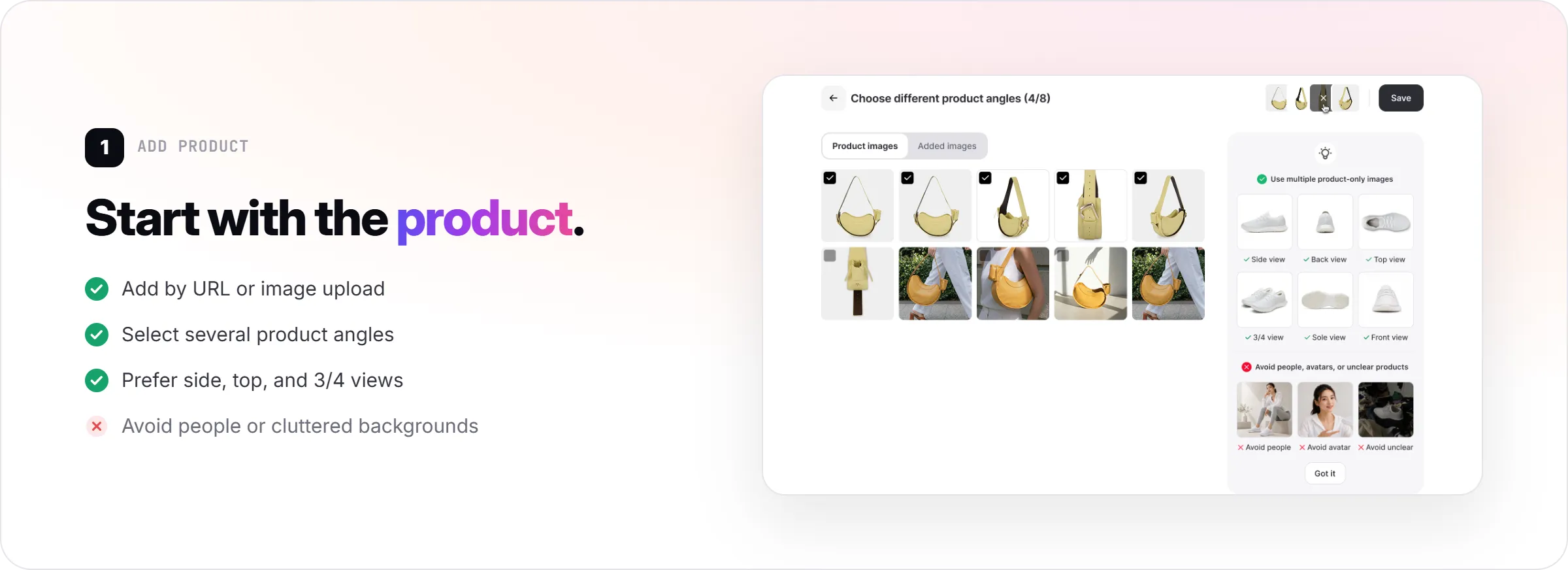
More angles typically produce more accurate product representation across scenes. If a tool suggests specific angles - side view, top view, 3/4 view - matching those suggestions usually improves output quality more than uploading random extra photos. Skip images that already contain people, avatars, or cluttered backgrounds, since the AI reads the product itself and existing people in the photo confuse what it's supposed to generate.
Step 2: Choose a Video Format
Pick the format that matches how you want the ad to feel. Common AI UGC formats include:
- Direct Testimonial - a creator speaks straight to camera with a personal recommendation
- Voiceover Product Review - the product is shown on screen while a voiceover narrates its benefits
- POV Product Demo - hands-on interaction with the product from a first-person angle
- Problem and Solution - opens with a relatable problem, then shows the product solving it
- Routine or Day in the Life - the product appears naturally inside a daily routine
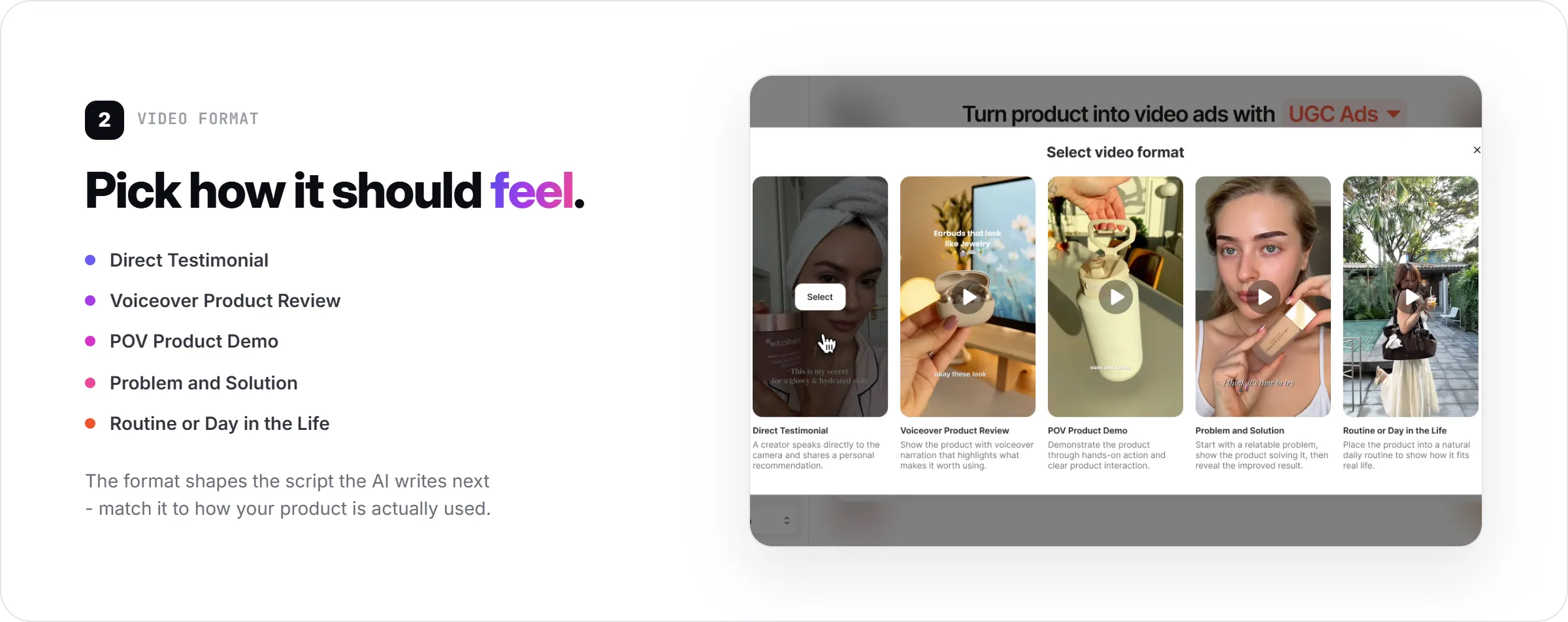
The format you pick shapes the script structure the AI generates next, so match it to how your product is actually used. A skincare product often fits Routine or Day in the Life, while a gadget with a clear before/after benefit fits Problem and Solution. If you're unsure which fits your product, comparing different UGC ad styles side by side helps narrow it down before you commit to a format. Forcing a product into the wrong format is one of the fastest ways to end up with a script that reads generic instead of specific.
Step 3: Generate or Write the Video Idea
- AI suggests a Hook, Message, Visual direction, and Call to Action
- Browse alternative suggestions if the first idea doesn't fit
- Write your own idea instead if you already know the angle to test
Most AI UGC tools suggest a video idea automatically once you've set the product and format. This idea usually breaks down into a Hook, a Message, a Visual direction, and a Call to Action.
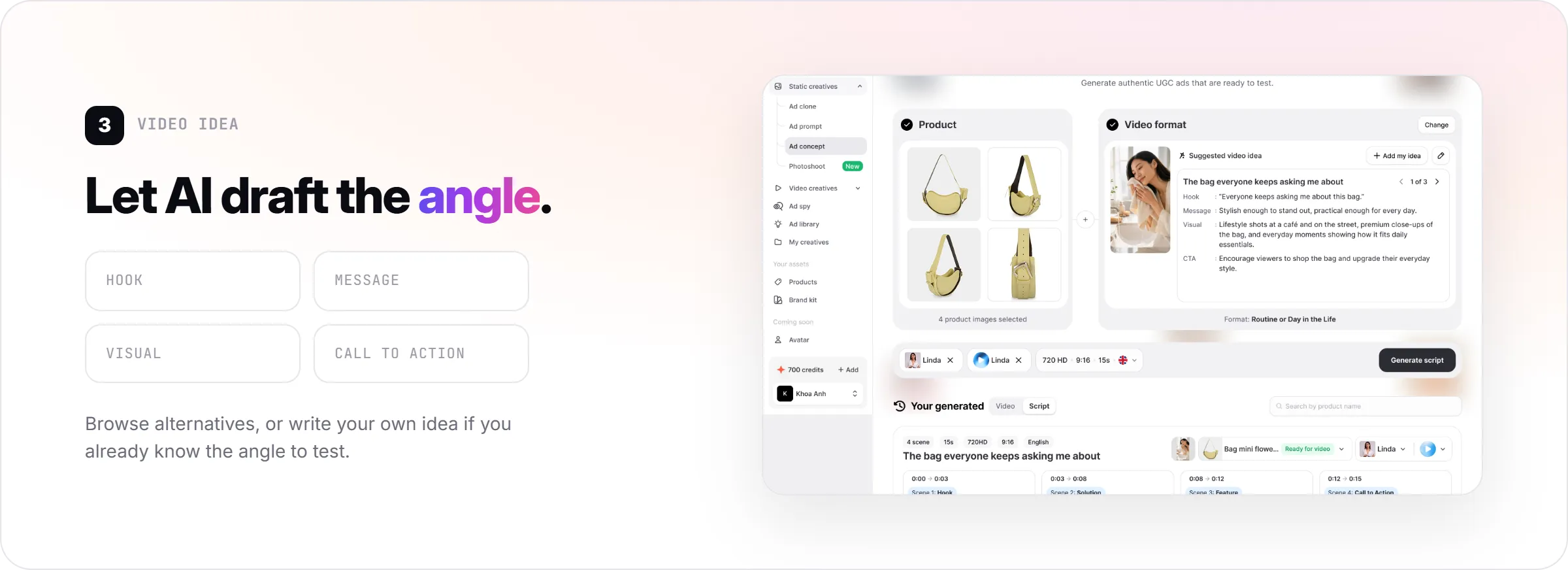
Promer AI generates this breakdown for you and shows several alternatives to choose from, or you can write your own idea if you already know the angle you want to test. Reviewing the AI-suggested hook before moving forward is worth the extra minute - a weak hook is the most common reason a UGC-style ad underperforms, AI-generated or not. The fundamentals of creating effective UGC ads still apply here, AI just removes the filming step.
If none of the suggested ideas fit, most tools let you add your own idea instead of forcing you to pick from the defaults.
Step 4: Select an AI Model and Voice
- Choose an AI model (avatar), filterable by gender, age group, region, and shooting style
- Pair it with a voice, filterable by language, accent, gender, and use case
- Match the model and voice to your actual target customer
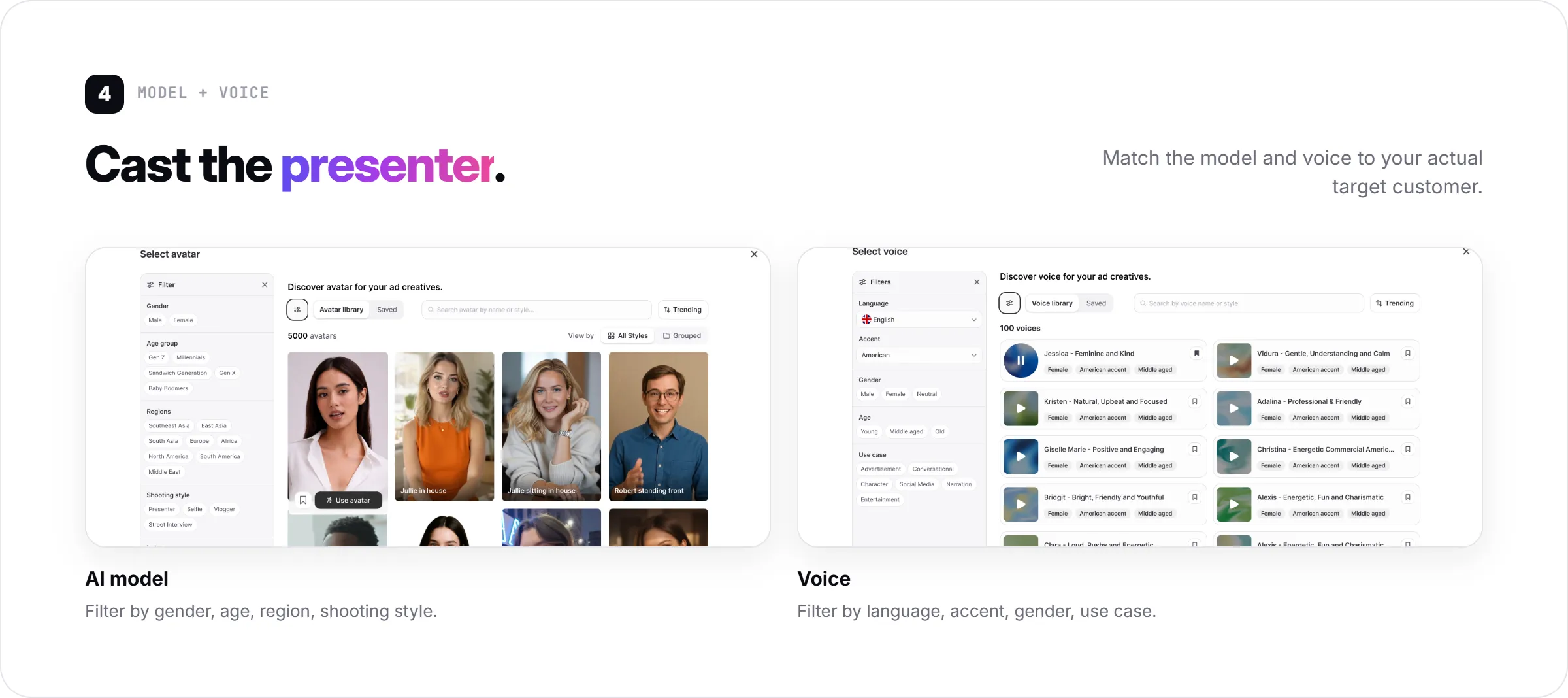
Choose the AI model (avatar) who will appear in the video, then pair it with a voice. Libraries typically let you filter by gender, age group, region, and shooting style so the presenter matches your target customer.
Voice selection works the same way - filter by language, accent, gender, and use case to find a voice that sounds natural for an advertisement rather than a narration or character read. Matching the AI model's apparent age and setting to your actual customer tends to produce more believable results than picking the first option.
Step 5: Generate the Script and Video
- Generate a scene-by-scene script (hook, solution, feature, call to action) with timestamps
- Review and edit the script before rendering
- Generate the final video, which typically takes several minutes
Once the product, format, idea, AI model, and voice are set, generate the script. This typically returns a scene-by-scene breakdown - hook, solution, feature, call to action - each with a timestamp and a matching voiceover line you can edit before rendering.
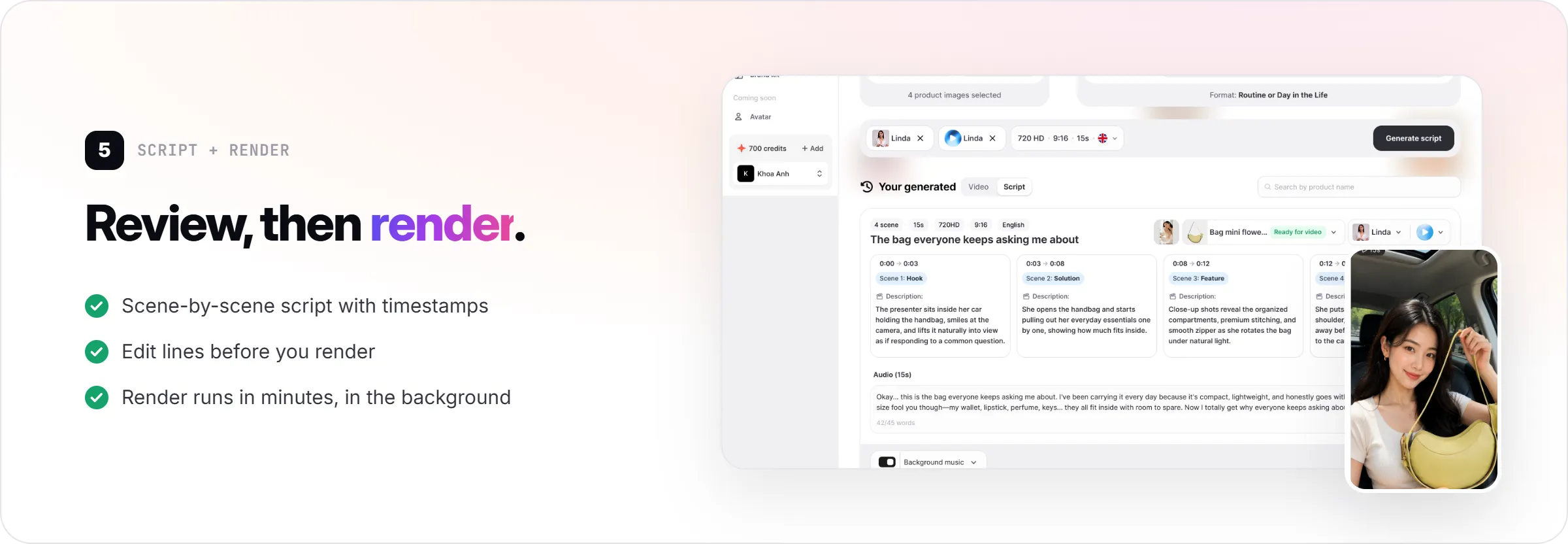
Review the script before generating the final video. This is the fastest point to fix a weak line or an inaccurate product claim, before it's locked into rendered footage - errors caught here take seconds to fix, versus a full re-render later.
After the script is approved, generate the video. Rendering AI UGC video typically takes several minutes, and you can usually keep working while it processes in the background.
What Good Output Looks Like?
A finished AI UGC video should look like a short, casual product video - the kind a real customer might post - rather than a polished commercial. The pacing should match the format you picked: a testimonial should feel personal, a POV demo should feel hands-on.
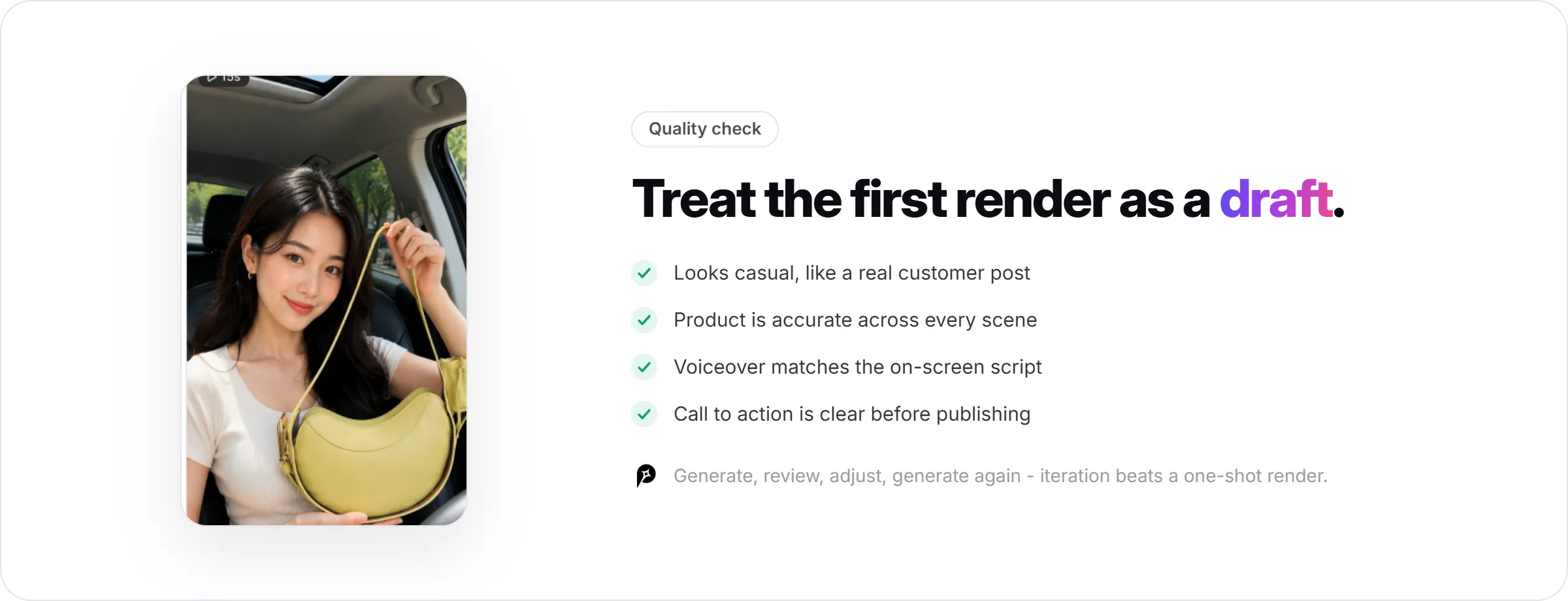
Check that the product itself is represented accurately across scenes, since this is where AI UGC most often shows visible errors. Confirm the voiceover matches the on-screen script and that the call to action is clear before downloading or publishing - and treat the first render as a draft, not a finished ad. AI UGC tends to work best as an iteration process: generate, review, adjust the idea or format if something feels off, and generate again rather than expecting the first version to be ready to scale.
FAQs about Making AI UGC Videos
Do I need filming equipment to make an AI UGC video?
No. AI UGC videos are generated entirely from product images and text inputs, so no camera, lighting, or filming setup is required.
You still need clear product photos as the input, but the actual video - including the presenter, voice, and scenes - is generated by the AI tool. This is the main difference from traditional UGC, which requires filming a real creator.
How long does it take to generate an AI UGC video?
Generation time varies by tool and video length, and typically takes several minutes rather than hours. Exact timing depends on script length, resolution, and current tool load, so check the specific platform you're using for current estimates.
Because generation happens in the background on most tools, you can often prepare additional product ideas or scripts while a video renders.
Can I use my own script instead of the AI-generated one?
Yes, on most AI UGC tools. AI-suggested scripts are a starting point, not a requirement - you can typically edit the generated script line by line or write your own from scratch.
Promer AI lets you edit the voiceover script directly after generation, so you can adjust claims, tone, or wording before rendering the final video.
What's the difference between AI UGC and a regular AI avatar video?
AI UGC specifically mimics the casual, creator-style format of real user-generated content - testimonials, reviews, POV demos - rather than a formal presenter video. The format, pacing, and voice choices are built to feel like something a real customer posted, not a produced ad.
A generic AI avatar video can use the same underlying avatar and voice technology but without the format structure (hook, problem, solution) that makes UGC-style content convert differently than a straight product pitch.
Does AI UGC actually perform as well as real creator content?
Results vary by product, audience, and execution, so there's no universal answer. AI UGC videos share the same format logic as real UGC (relatable hooks, casual pacing, first-person framing), which is part of why they can perform well in testing.
The honest answer is that AI-generated creatives may contain small errors, and performance still depends heavily on the hook and product fit, not just the fact that it's AI-generated. Testing multiple versions is the most reliable way to find out what works for a specific product.
Can I make AI UGC videos in different languages?
Many AI UGC tools support multiple video languages, letting you generate the same ad concept in different languages for different markets. Available languages vary by platform, so check the specific tool's language list before planning a multi-market campaign.
What size or format should my AI UGC video be?
Most AI UGC tools default to a vertical format (9:16), matching Stories, Reels, and TikTok, since that's where most UGC-style ads run. Confirm the exact aspect ratio and resolution options in your tool before generating if you need a different platform format.
If you're ready to try the workflow above, an AI ad generator like Promer AI can take you from product images to a rendered UGC video in one session.