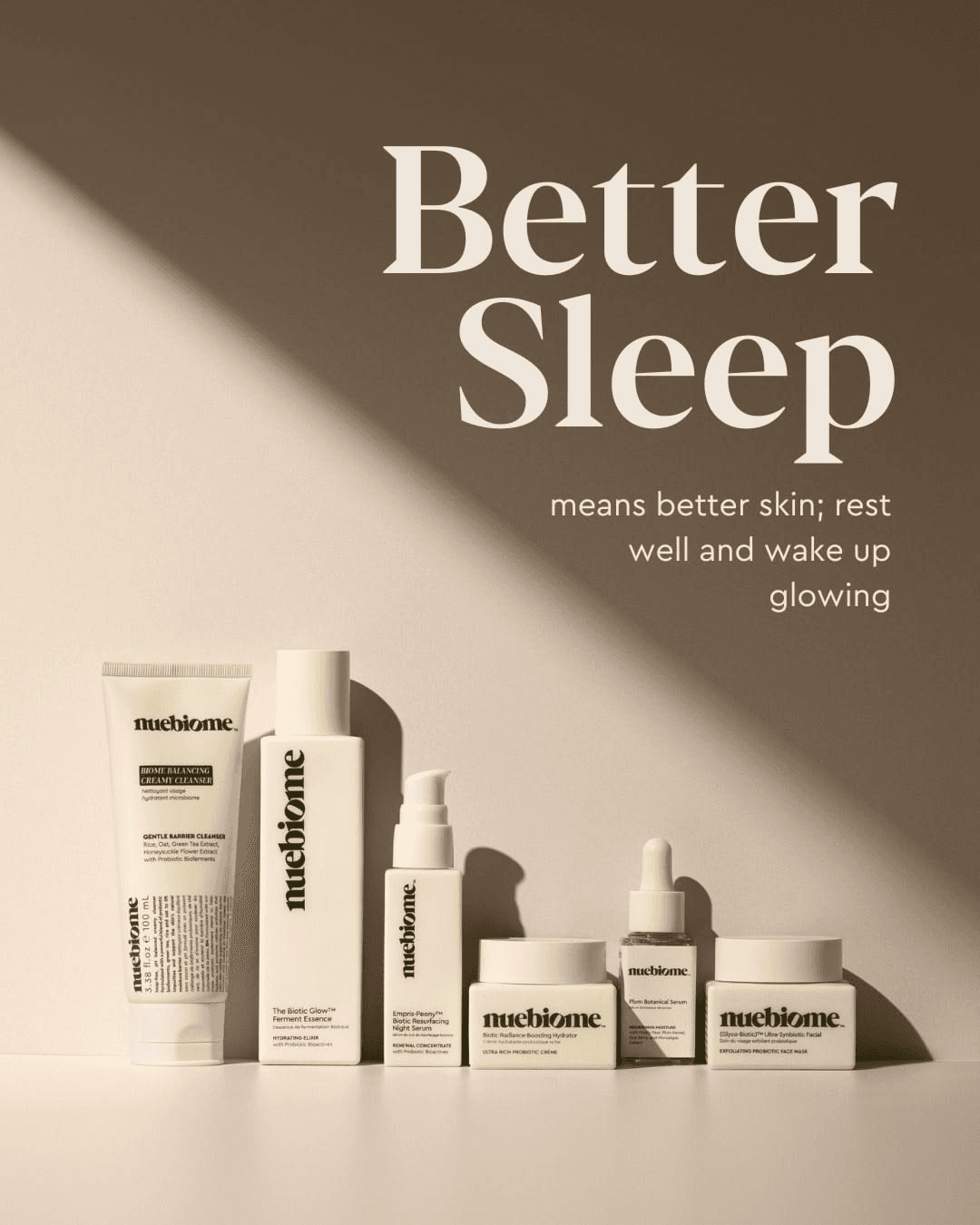
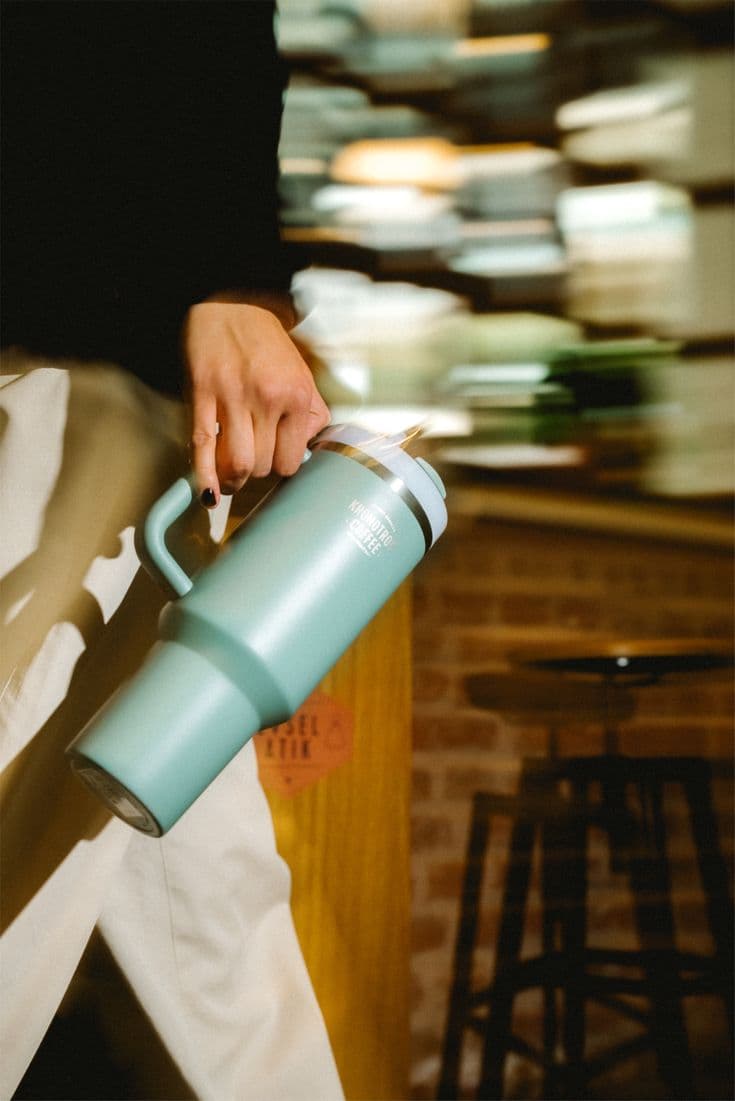
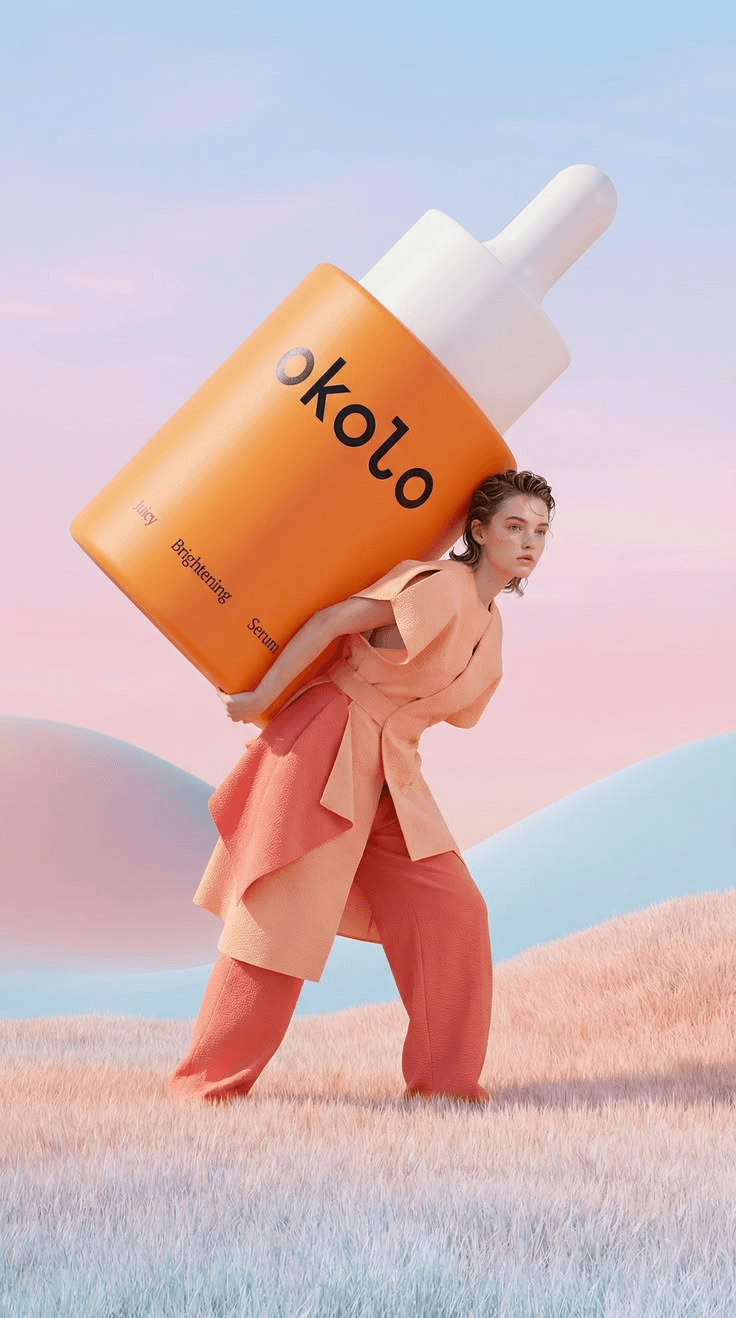
You don't need video footage of your own product to get a video ad out the other end - a product image is enough. What used to require a shoot, a model, and a director mapping out scenes now starts from a photo: AI studies a reference video that already works and rebuilds that same structure around your product.
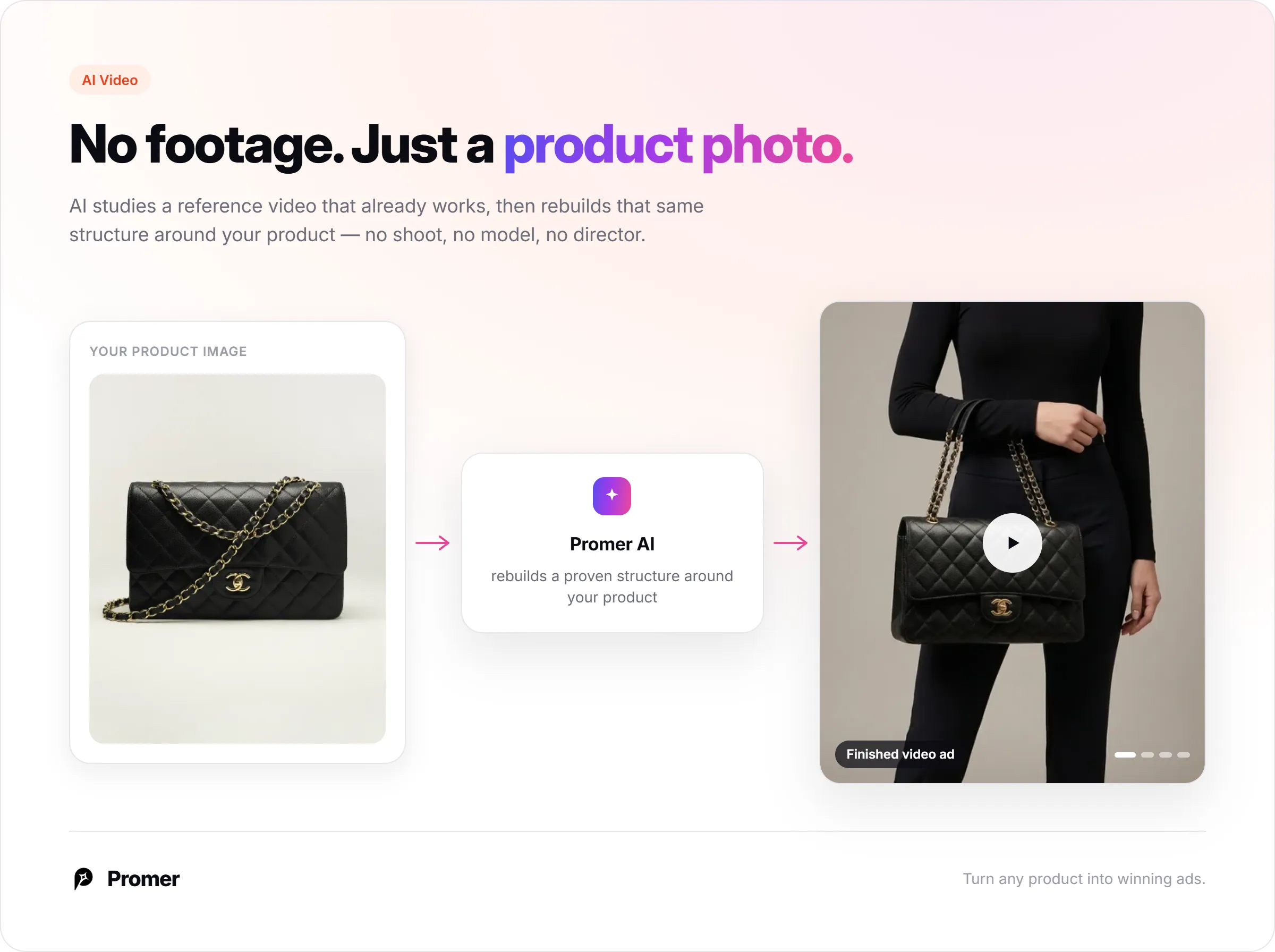
Most first attempts at this go backwards. Someone uploads a plain catalog photo, asks an AI tool to "make it a video," and gets back something that moves smoothly but says nothing specific about the product - the same problem a generic static ad would have had, just animated. The fix isn't a better motion prompt. It's starting from a structure that's already proven to hold attention, instead of inventing one from scratch.
This article covers two different starting points, because they solve two different situations - having only product photos and no ad yet, or already having a static ad you want to bring to life - and the workflow for each, using Promer AI's AI ad maker as the example throughout.
Key Takeaways
- Product images alone are enough to produce a full video ad - you don't need existing video footage.
- Which path to use depends on what you already have: only product photos means cloning a reference video's structure; an existing static ad means animating it directly.
- A proven reference video (one you've seen perform, or Promer AI's own suggested match) beats a blank motion prompt, because the sequence and pacing are already tested.
- Product image quality drives result quality either way - clear, multiple angles, no people or busy scenes in frame.
- The output is a script or motion plan you review before generating the final video, not a black box - check it against the real product before moving on.
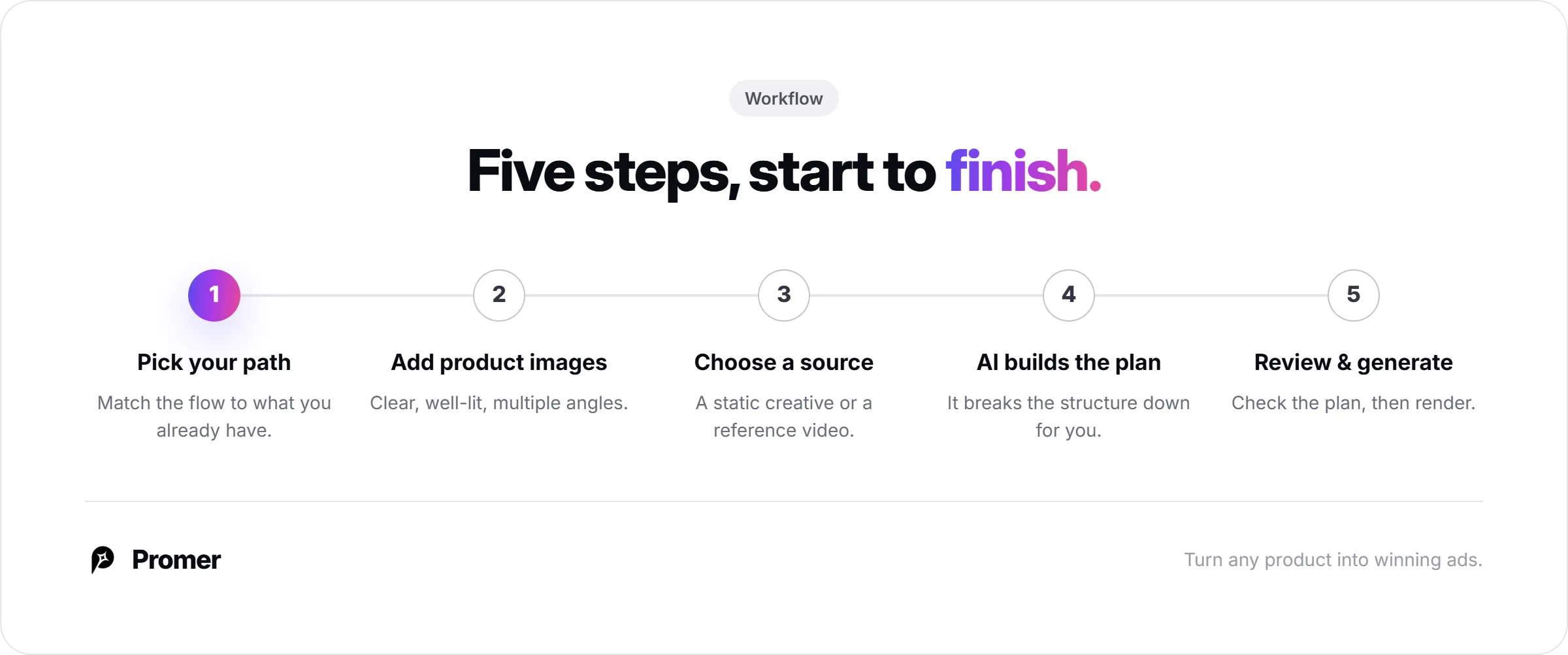
The Workflow at a Glance
Before going step by step, here is the full sequence. Each step below maps to one of these:
- Step 1: Decide which path fits what you already have
- Step 2: Add clear product images
- Step 3: Pick what the video should be built from - a static creative or a reference video
- Step 4: Let AI break it down and build the video plan
- Step 5: Review the script or motion, then generate
Why Starting From a Proven Structure Beats a Blank Motion Prompt?
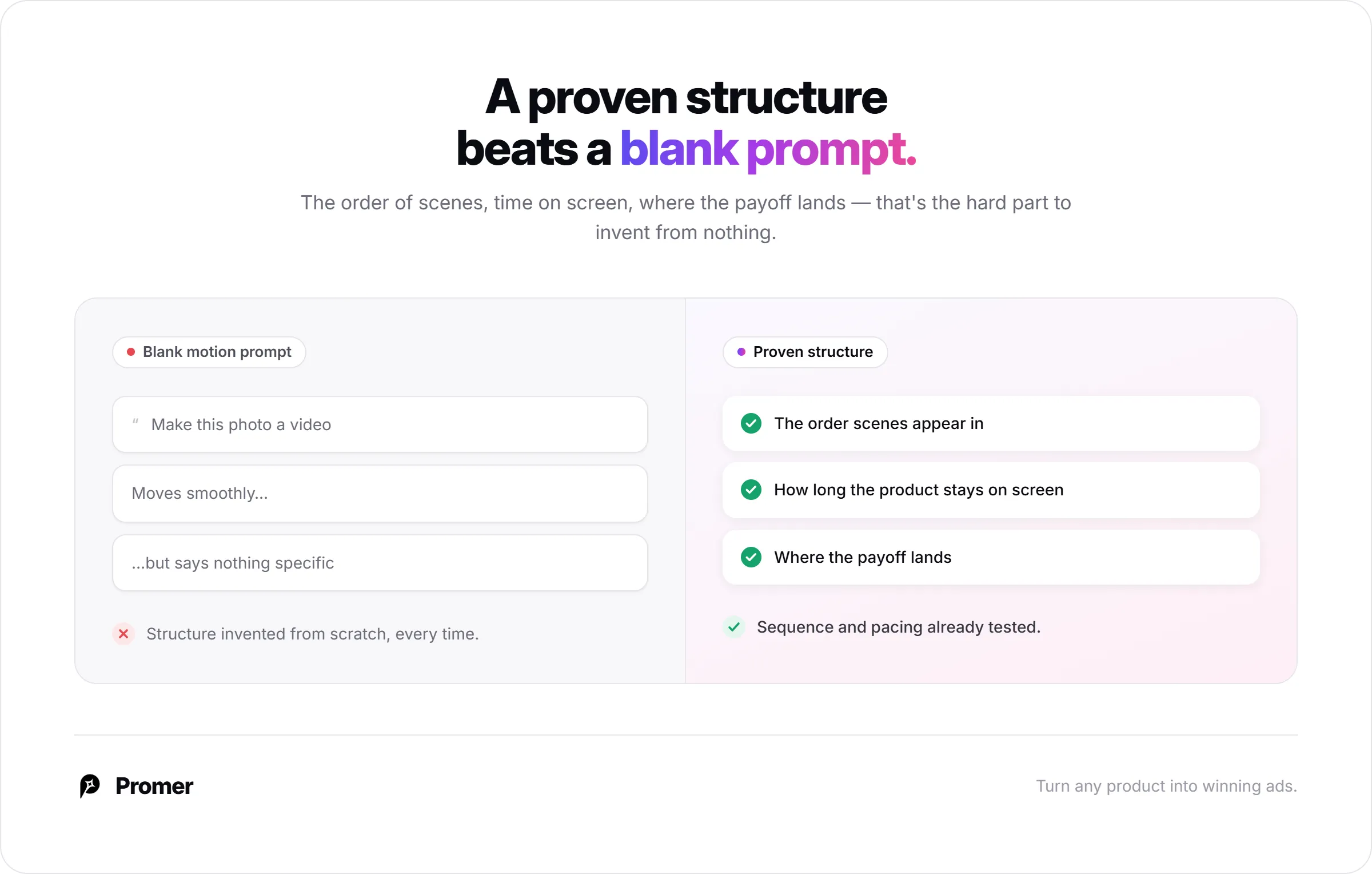
A video ad works because of its structure - the order scenes appear in, how long the product stays on screen, where the payoff lands. That structure is the hard part to get right from nothing, whether you're briefing a video shoot or typing a motion prompt into a generic AI tool.
Starting from something already proven skips that guesswork. If you have a static ad that's already tested well, animating it directly carries that proven angle into motion. If you only have product photos, cloning the scene sequence of a real video ad that performs - rather than generating motion from a blank prompt - gives the AI a structure to follow instead of one to invent.
Either way, the quality of what you start from matters more than any setting you'll pick afterward. A weak static or a mismatched reference still produces a weak result, just moving.
Step 1: Decide Which Path Fits What You Already Have
If you already have a static ad creative - one with a headline, a visual hook, tested copy - the faster path is animating it directly. This is what AI Ad Animation does: it takes an existing static and adds motion to it, so the proven angle you already have gets a motion treatment on top.
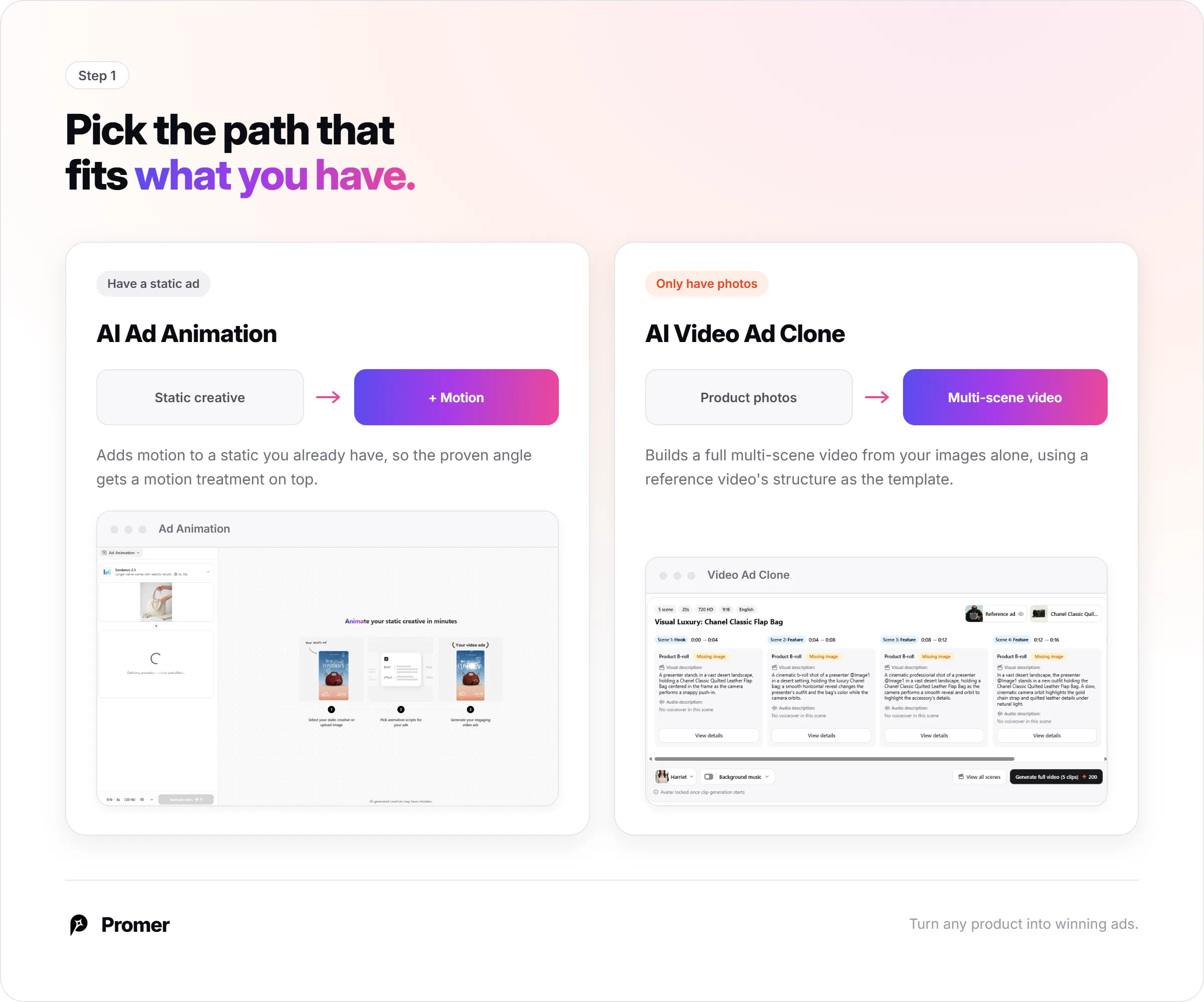
If all you have is a product photo and no ad built yet, AI Video Ad Clone is the path: it builds a full multi-scene video ad from your product images alone, using a reference video ad's structure as the template, without you needing to write a script or brief a shoot.
These aren't interchangeable steps in the same flow - they're two different starting points for two different situations. Picking the one that matches what you actually have saves a round of rework later.
Step 2: Add Clear Product Images
Both paths depend on image quality. Use a clear, well-lit photo with the product fully in frame - avoid glare, blur, and busy backgrounds.
For AI Video Ad Clone specifically, adding multiple angles (front, side, back, top, 3/4, bottom) gives the AI more to work with across a multi-scene video, up to several images per ad.
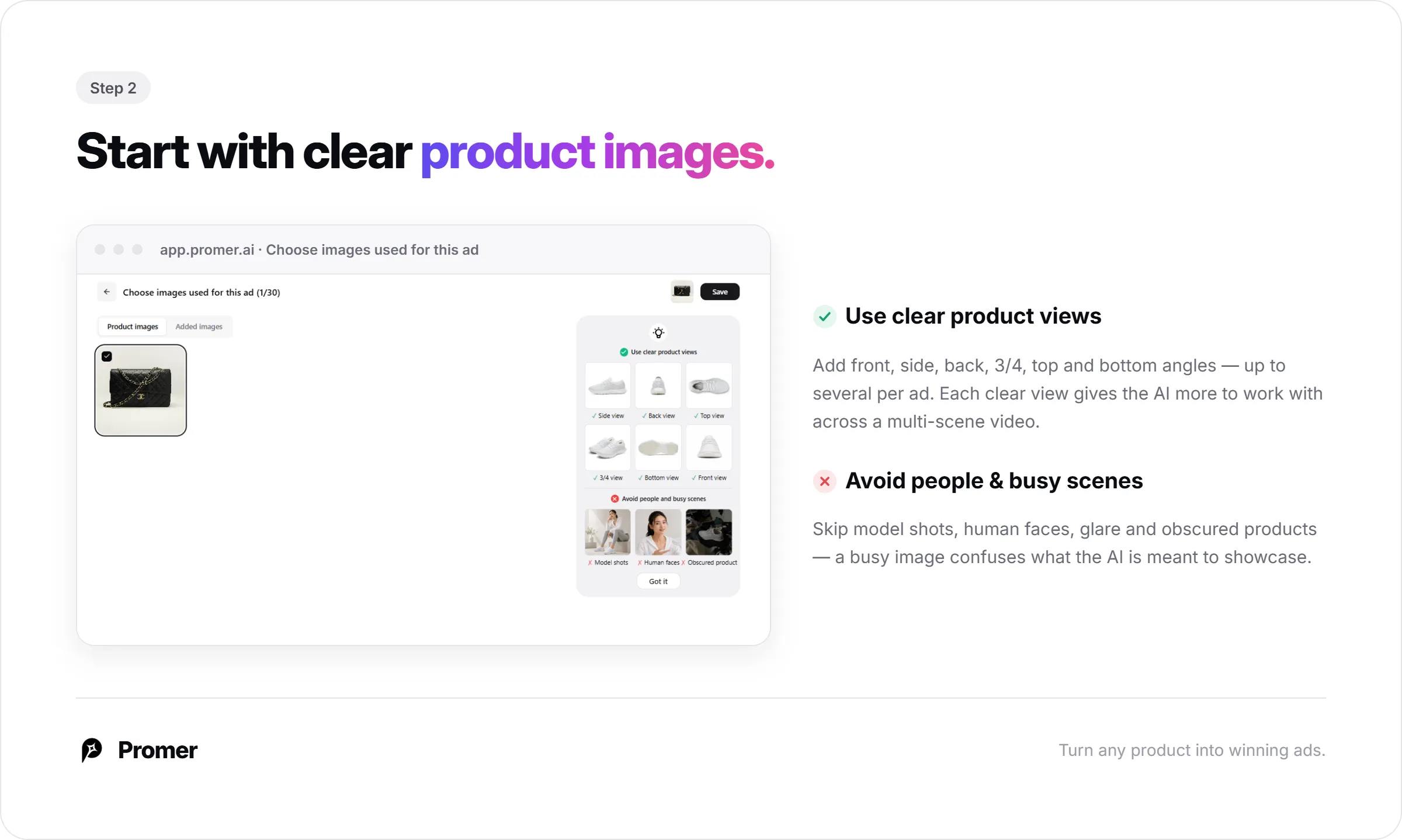
Avoid images with people, model shots, or an obscured product - the guidance in-app is explicit about this, since a busy or people-heavy image confuses what the AI is meant to be showcasing. If your source video model doesn't generate real people, a product-only image also avoids that limitation entirely.
Step 3: Pick What the Video Should Be Built From
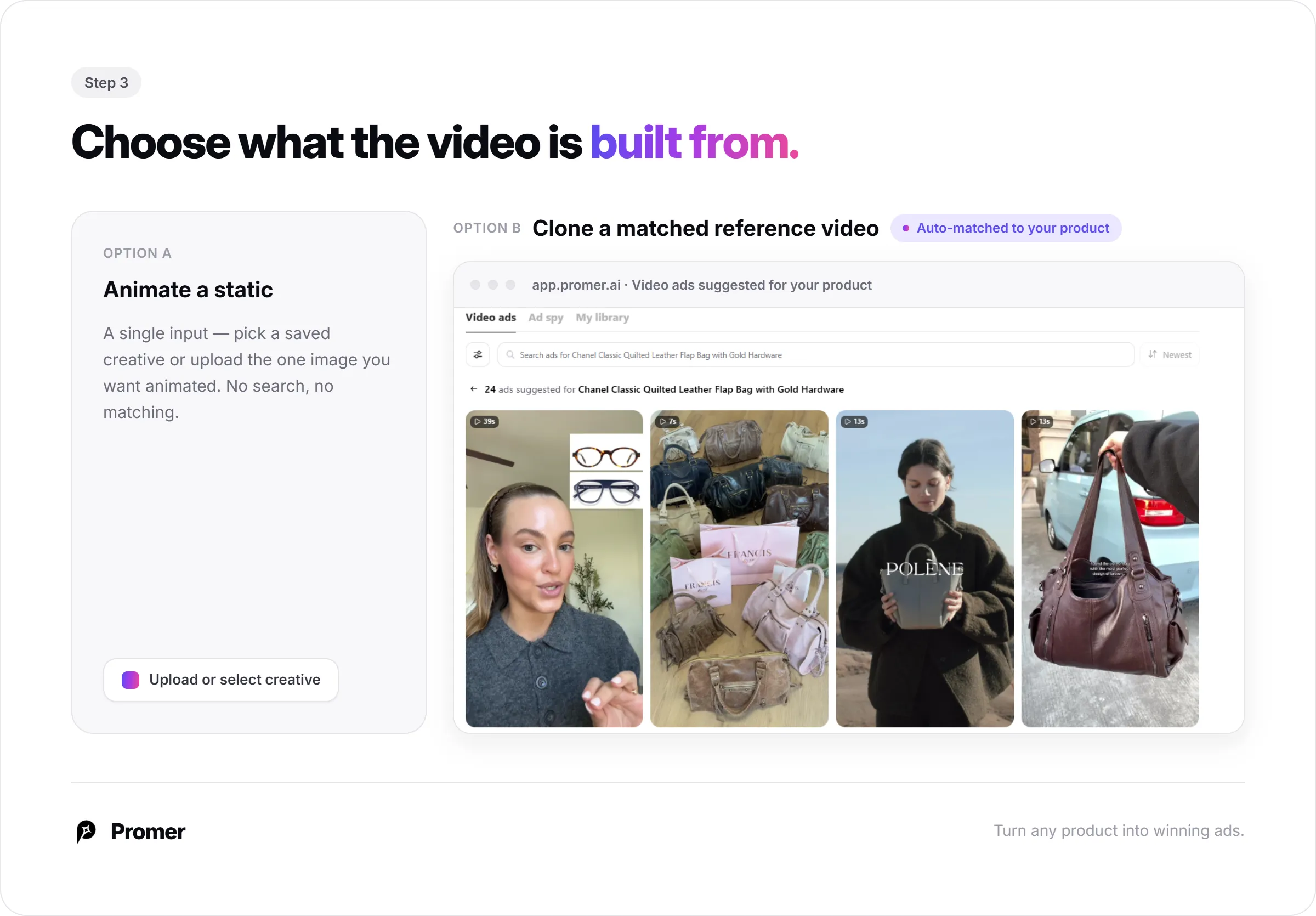
For animating an existing static, select it from your saved creatives or upload the image you want animated - this is a single input, not a search.
For cloning a reference video, this step looks different: Promer AI surfaces video ads relevant to your specific product automatically, pulled from its ad library and searchable by product name, so you're choosing from ads already matched to what you're selling rather than browsing unrelated categories.
You can also upload your own reference video if you have a specific one in mind. Promer AI shows an assessment of why a given reference fits your product before you commit to it.
Picking a mismatched reference - a fast unboxing-style ad for a slow, considered product category, for instance - is the main way this step goes wrong. The auto-suggested matches exist specifically to reduce that risk.
Step 4: Let AI Break It Down and Build the Video Plan
For animation, AI suggests a small set of animation scripts for the static - each with a brief description and an effect - matched to what's already in the image, rather than a single default motion.
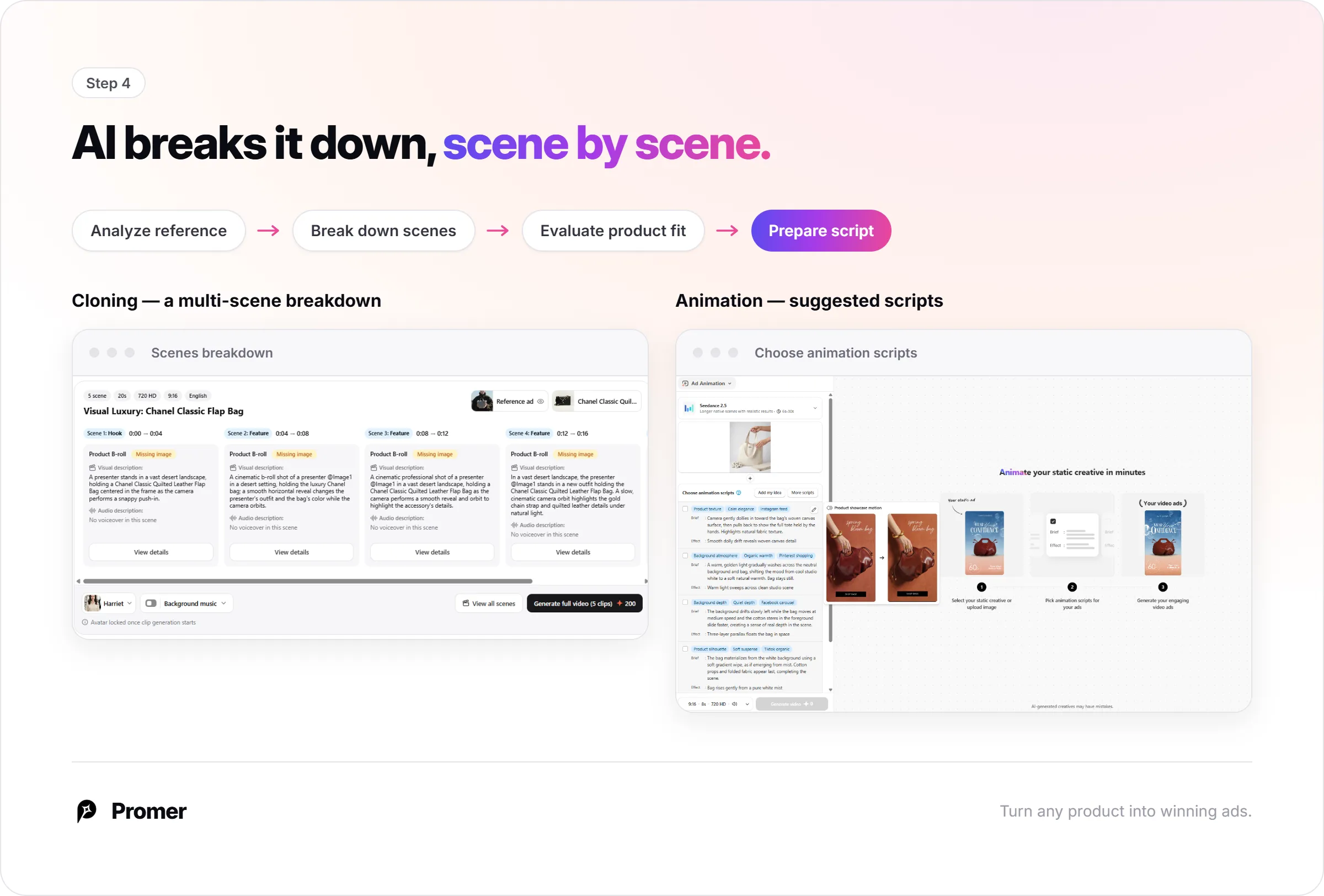
For cloning, AI works through the reference video in stages: analyzing the reference ad, breaking down its scene sequence, evaluating how well your product fits each scene, then preparing a script. The result is a multi-scene breakdown - hook, feature scenes, and so on - each with its own visual and audio description, built around your product rather than the reference's original one.
Step 5: Review the Script or Motion, Then Generate
Before generating the final video, review what AI has proposed. For animation, that means checking the suggested effect actually supports the ad's existing angle rather than just looking busy. For cloning, that means reading through the scene-by-scene script - checking the visual and audio description in each scene against the real product, catching any detail that doesn't match before it's baked into the final render.
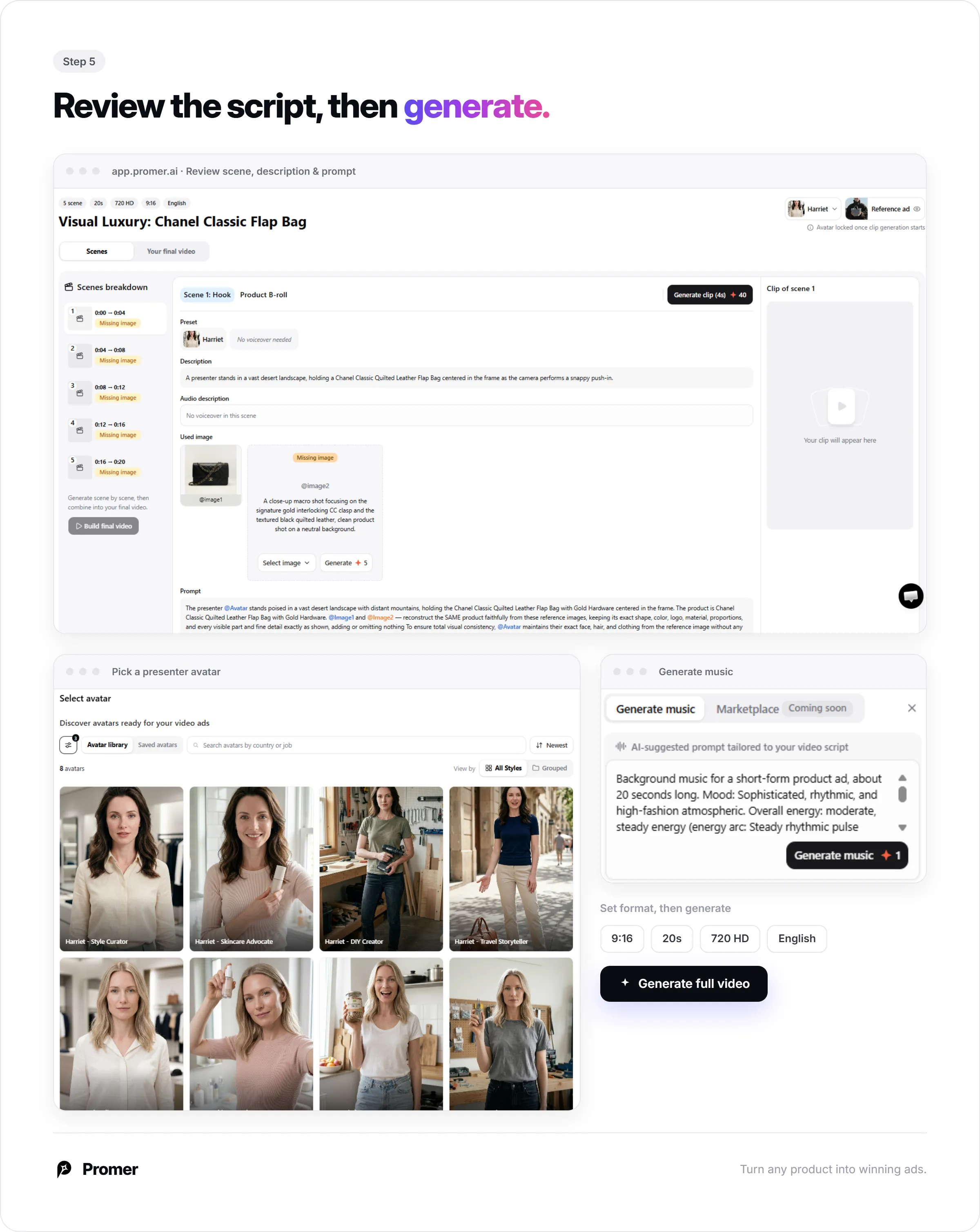
Set format before generating either way - aspect ratio, duration, resolution, and language, matched to where the ad will actually run. Once the plan looks right, generate the video.
What Good Output Looks Like?
Play the finished clip at full speed once, then again frame by frame at the cuts between scenes. The product should hold its shape and color at every transition - a bag that's slightly the wrong width in scene three, or hardware that shifts color between shots, is a rendering error to fix before publishing, not something viewers will overlook.
Read the overlay text against your actual product page open in another tab. A price, a material claim, or a feature mentioned in the script should match what's actually true today - not a number carried over from whatever reference or prior version the AI drew structure from.
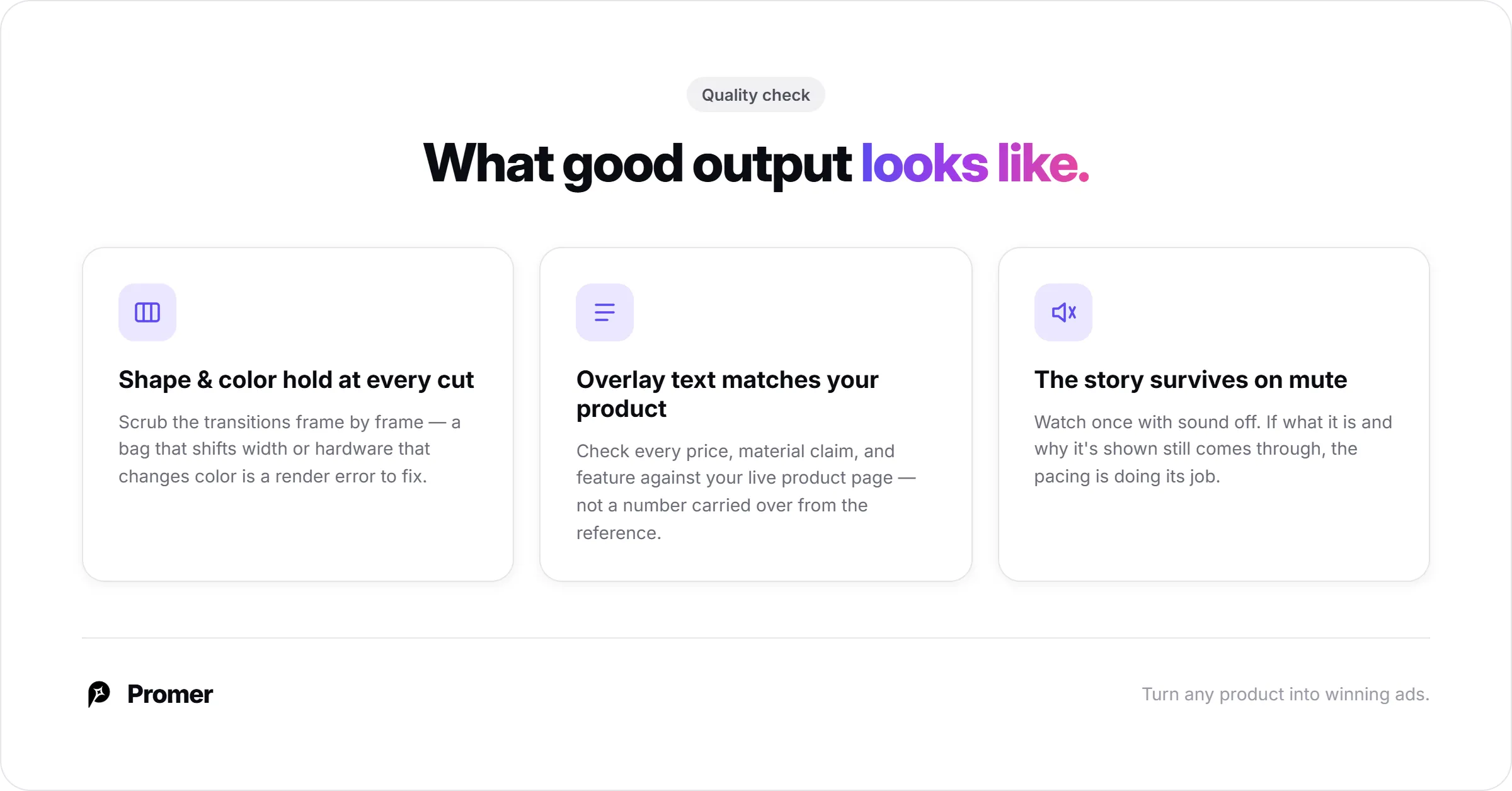
Mute the video and watch it once more. If the product story still comes through without sound - what it is, what it does, why it's shown that way - the pacing is doing its job regardless of platform autoplay settings.
Common Mistakes about Turning a Product Image Into AI Video
A jewelry brand animating a fast, high-energy effect meant for a snack or gadget ad is a version of the same mistake every category runs into: the motion effect was picked for how it looked in a preview, not for whether it suits how the product is actually sold. Match the energy of the motion to the category, not to what looked most impressive in a demo.
A skincare brand cloning a reference video built around a completely different type of product - say, a fashion accessory montage - ends up with scene pacing that never quite fits, even after the AI adapts the script. The fit assessment shown before generating exists to catch this; skipping past it because the reference "looked good" is where mismatches start.
Generating five variations back to back without watching any of them fully is the fastest way to publish a version with a rendering glitch or a leftover reference detail. One full watch-through per generated video, sound on and sound off, catches most of what a quick preview thumbnail hides.
FAQs about Turning a Product Image Into AI Video
Do I need my own video footage to turn a product image into a video ad?
No - product images alone are enough; the video structure comes from either an existing static creative or a reference video ad, not footage you shoot yourself. AI Video Ad Clone builds a full multi-scene video from product images and a reference structure, so the workflow starts from photos on your side, not a camera.
What's the difference between animating a static ad and cloning a video ad?
Animating adds motion to one static creative you already have; cloning builds a new multi-scene video from product images and a reference video's structure. Use animation when you already have a working static ad and want to bring it to life. Use cloning when you only have product photos and no ad built yet, and want a full video sequence rather than a single animated image.
How does Promer AI pick which reference video to suggest?
It matches reference ads to your specific product automatically, pulled from its ad library and searchable by product name. This narrows the choice to ads already relevant to what you're selling, rather than requiring you to browse an unrelated category and guess at fit. You can also upload your own reference video instead.
How many product images should I use for AI Video Ad Clone?
More than one angle typically helps, since the output is a multi-scene video, not a single frame. In-app guidance recommends clear product views - side, back, top, 3/4, bottom, and front - and to avoid people, model shots, and busy scenes, since those confuse what the AI is meant to feature.
Can I edit the script before the video is generated?
Yes - the scene-by-scene script, including visual and audio descriptions for each scene, is shown before you generate the final video. This is the point to catch any detail that doesn't match your actual product or offer, since it's far easier to fix in the script than after rendering.
What's included in the free plan?
You can create your first ad free, with no credit card required. For current usage limits and what each tier covers, check the pricing inside the app.
Bibliography
SocialPilot. (2026). 95+ video marketing statistics you need to know in 2026.
Shno.co. (2026). Short-form video statistics for 2026: Platform benchmarks, engagement rates, ROI, consumer behavior, ad spend, and creator data.
Shno.co. (2026). Video ad performance statistics for 2026: CTR benchmarks, completion rates, brand recall, ROAS, CTV, platform comparisons, DCO, and audience behavior data.